Integration with Training/Learning Environments
How to integrate SyncFlow with your training or learning environment
Integration Guide
The SyncFlow platform is designed to seamlessly integrate with various training and learning environments, in Ed. Tech. facilitating MMLA research and development. Figure below a coneptual overview of the integration process.
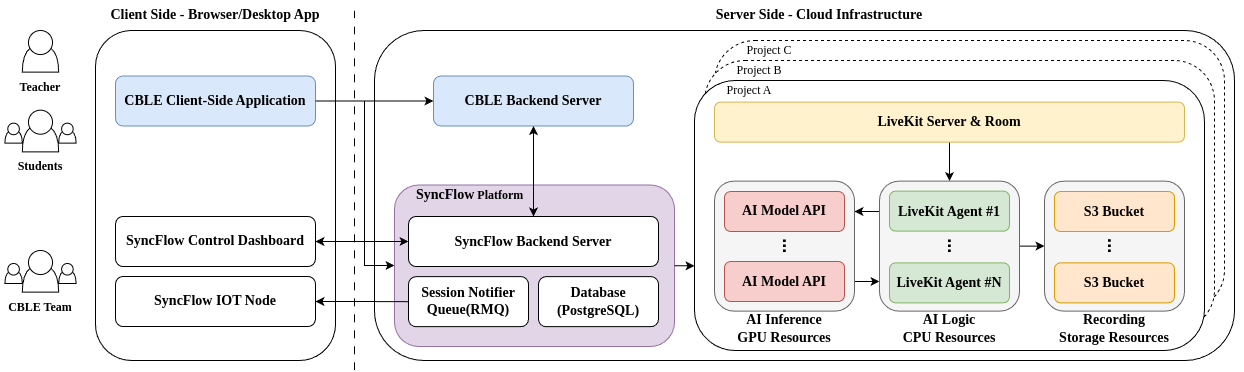
The SyncFlow backend server is the manager for all the multimedia and data interactions, while the training/learning environment acts as the client. The client application registers a project with SyncFlow and creates sessions for real-time multimedia streaming and data exchange. SyncFlow provides a secure and controlled project based API for managing resources, sessions, and participants. We also provide a set of SDKs and APIs for this integration to be seamless. Additionally, for streaming multimedia data from non login environments, we use a RabbitMQ based session notifier, which can be integrated to stream data from classroom mounted cameras/static devices.
Similar to the SyncFlow dashboard, the Computer Based Learning Environment(CBLE)'s backend server can be used to create/manage sessions programitically. For this, you can use the SyncFlow dashboard to create API Key and Secret pairs for your project. You can use the API Key and Secret to authenticate your requests to the SyncFlow backend server using a signed JWT token as the Authorization header.
Here's a step-by-step guide to integrate SyncFlow creating an API Key and Secret for your project:
- Navigate to https://syncflow.live/dashboard/projects. Login with your credentials if prompted.
- Open the Project and click on the settings icon on the top right corner of the project dashboard.
- Click on the
API Keystab and click on theCreate new API Keybutton.
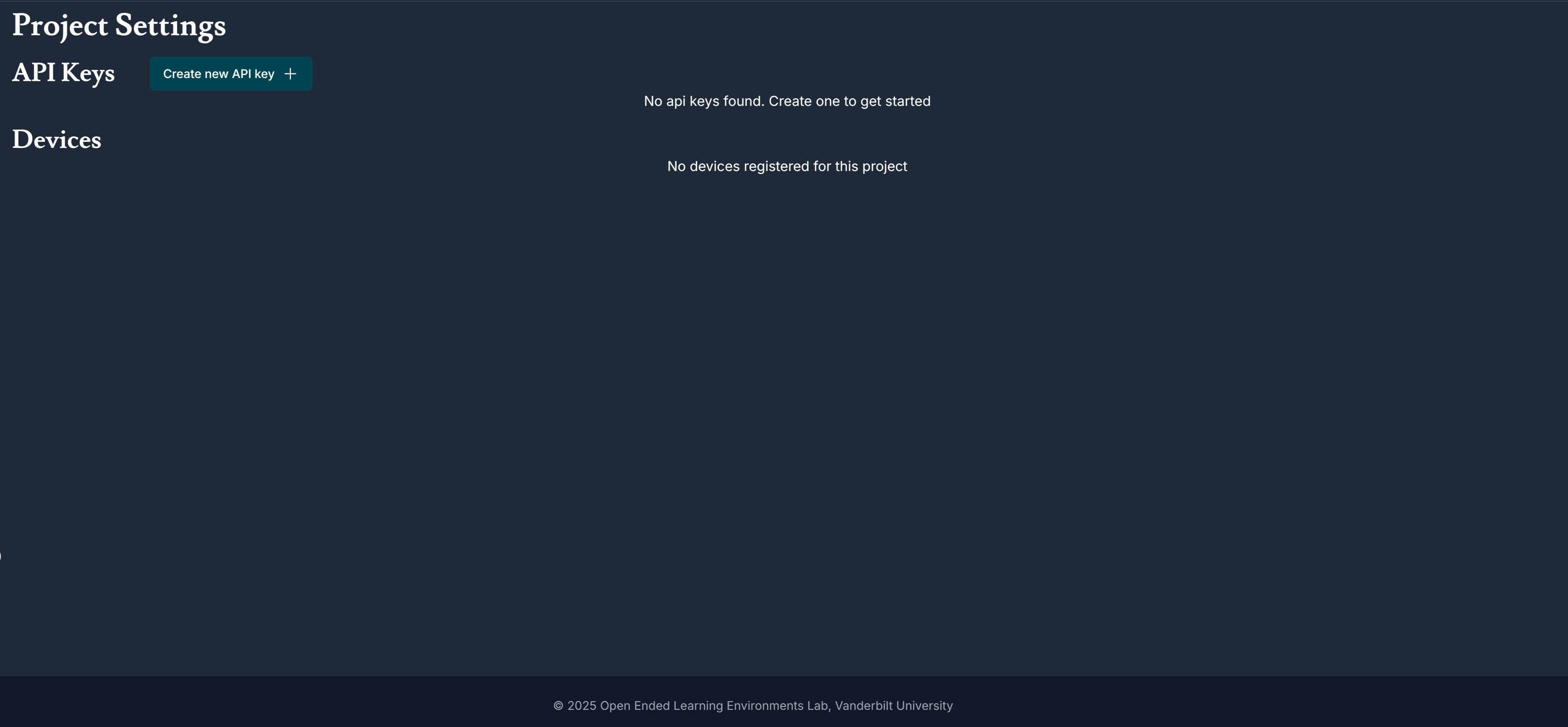
- Upon success, a new modal will pop up.
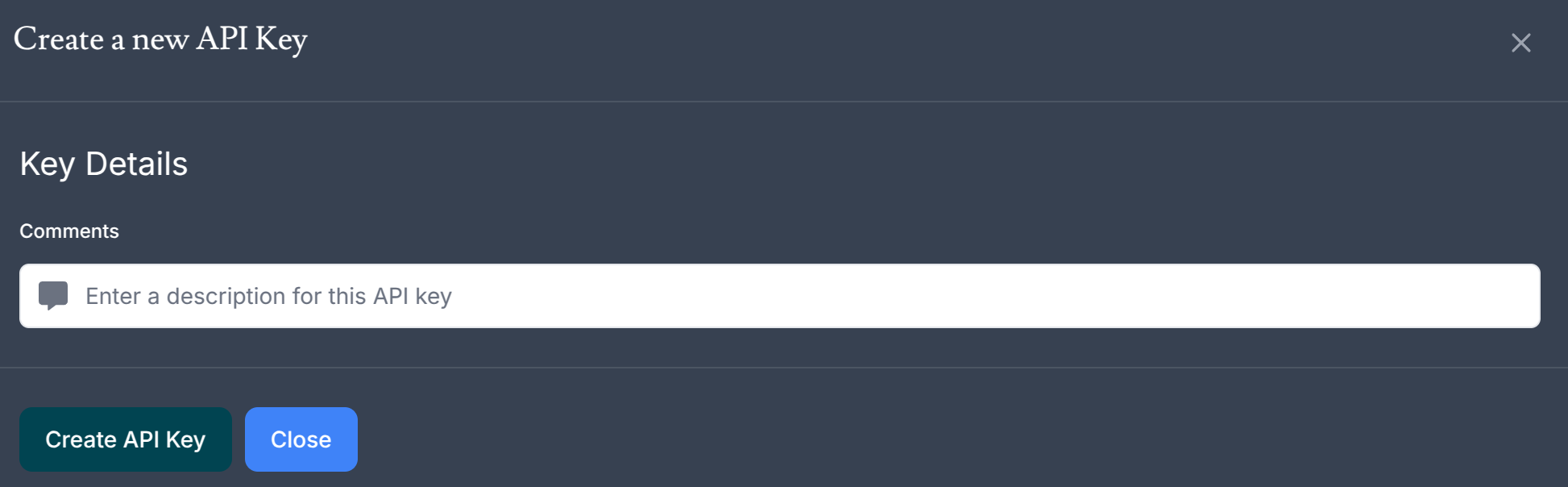
- Fill out the details, and click on the
Create API Keybutton. You will see the following screen:
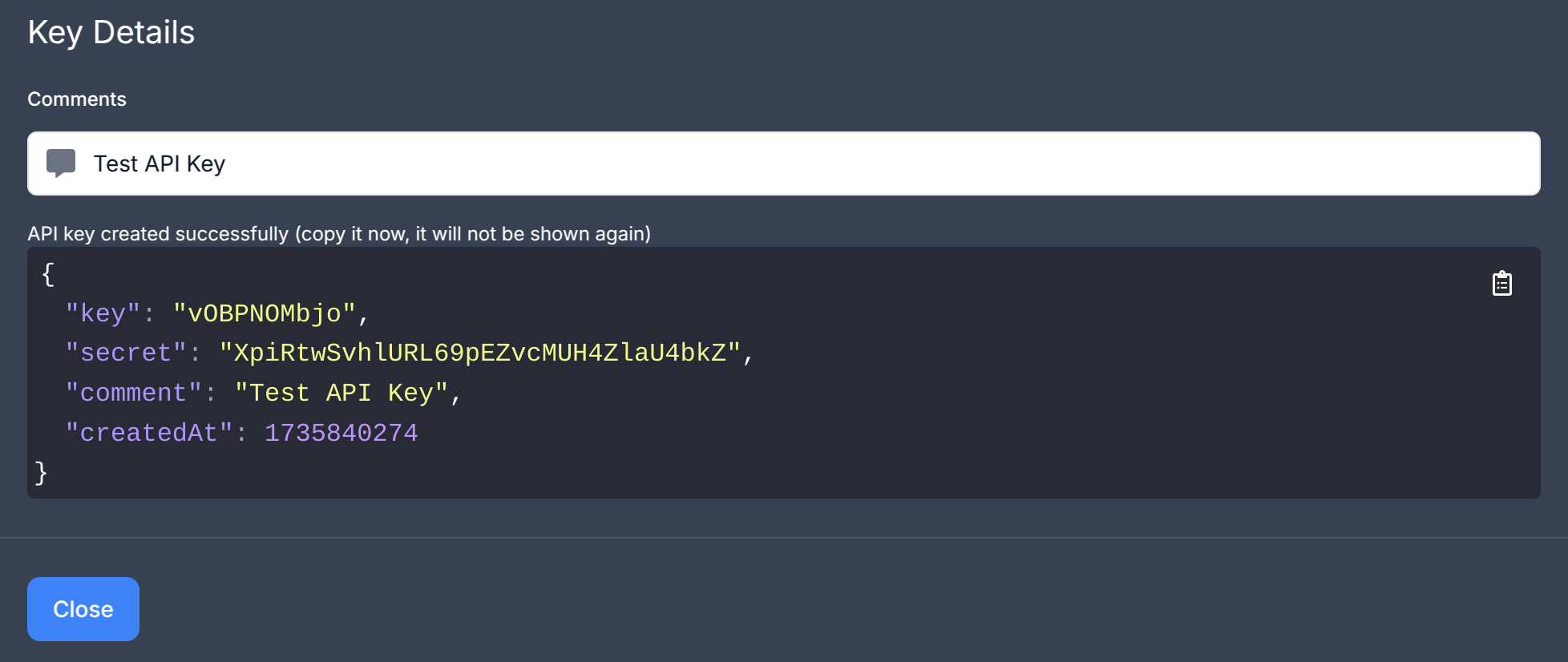
- Copy the
API KeyandSecretand store them securely. You can use these credentials to authenticate your requests to theSyncFlowbackend server. TheAPI KeyandSecrettogether with your project ID can be used to generate a following structure to create a signed JWT token, with your API secret.
{
    "iat": "<current time in milli seconds>",
    "exp": "<expiry time in milli seconds>",
    "iss": "<API Key>",
    "projectId": "<Project ID>"
}
-
Use the generated JWT token as the
Authorizationheader in your requests to theSyncFlowbackend server. If you are using theSyncFlowclientSDKs, you can set these as environment variables and the SDK will take care of the rest. -
You can now create sessions, manage resources, and participants in your project programmatically.
Creating Sessions Programitically
To create a new session for the project, the following steps can be used:
- Use the steps above to create a signed JWT token.
- Use the
SyncFlowbackend server API to create a new session for the project. The API endpoint isPOST /projects/<projectId>/create-session. The request body should contain the session name and description.
export interface NewSessionRequest {
    name?: string;
    comments?: string;
    emptyTimeout?: number;
    maxParticipants?: number;
    autoRecording?: boolean;
    deviceGroups?: string[];
}
Here's an example session request with CURL:
$ curl -X POST https://syncflow.live/api/projects/<projectId>/create-session \
    -H 'Authorization: Bearere <JWT Token>' \
    -H 'Content-Type: application/json' \
    -d '{
        "name": "Session 1",
        "comments": "This is a test session",
        "emptyTimeout": 60000,
        "maxParticipants": 10,
        "autoRecording": true,
        "deviceGroups": ["group1", "group2"]
    }'
You can now join the session using the sessionID returned in the response.
export interface ProjectSessionResponse {
    id: string;
    name: string;
    startedAt: number;
    comments: string;
    emptyTimeout: number;
    maxParticipants: number;
    livekitRoomName: string;
    projectId: string;
    status: string;
}
Joining Sessions from your Learning/Training Environment
Joining a session from your learning/training environment is akin to Joining a LiveKit room for the session. Please note that LiveKit room requires a unique identity for each participant and SyncFlow doesn't manage the participant identities. You can use the SyncFlow backend API to get the LiveKit room name, Server URL and room join token for the session. The API endpoint is POST /api/projects/<projectId>/sessions/<sessionId>/token. The request body should contain the participant identity and certain video grants. The details of the request body are as follows:
export interface VideoGrantsWrapper {
    canPublish: boolean;
    canPublishData: boolean;
    canPublishSources: string[];
    canSubscribe: boolean;
    canUpdateOwnMetadata: boolean;
    hidden: boolean;
    ingressAdmin: boolean;
    recorder: boolean;
    room: string;
    roomAdmin: boolean;
    roomCreate: boolean;
    roomJoin: boolean;
    roomList: boolean;
    roomRecord: boolean;
}


export interface TokenRequest {
    identity: string;
    name?: string;
    videoGrants: VideoGrantsWrapper;
}