Projects and Resources
Projects and resources in SyncFlow
SyncFlow Projects Overview
SyncFlow enables MMLA developers to register and create distinct projects, each consisting of essential resources for managing multimedia and data interactions. A project in SyncFlow is structured as follows:
-
LiveKit Server
Each project is linked to a dedicated LiveKit server with its unique credentials, facilitating real-time multimedia streaming. -
Storage (S3 Bucket)
Projects are equipped with a secure S3 bucket and corresponding credentials for efficient data storage and retrieval.
Sessions: The Core Unit of Execution#
Sessions represent the atomic unit of execution within SyncFlow, enabling real-time collaboration and data exchange. Key features include:
-
LiveKit Room Creation
A session dynamically generates a LiveKit room, allowing only authenticated clients to join. This ensures secure and controlled access for participants. -
Multimedia and Textual Streaming
Authenticated participants can share and stream multimedia (audio, video) alongside textual data seamlessly within the session.
Creating a Project
In order to create a new project in SyncFlow, follow these steps:
- Navigate to https://syncflow.live/dashboard/projects/create. Login with your credentials if prompted.
- Upon success, you should see the following screen:
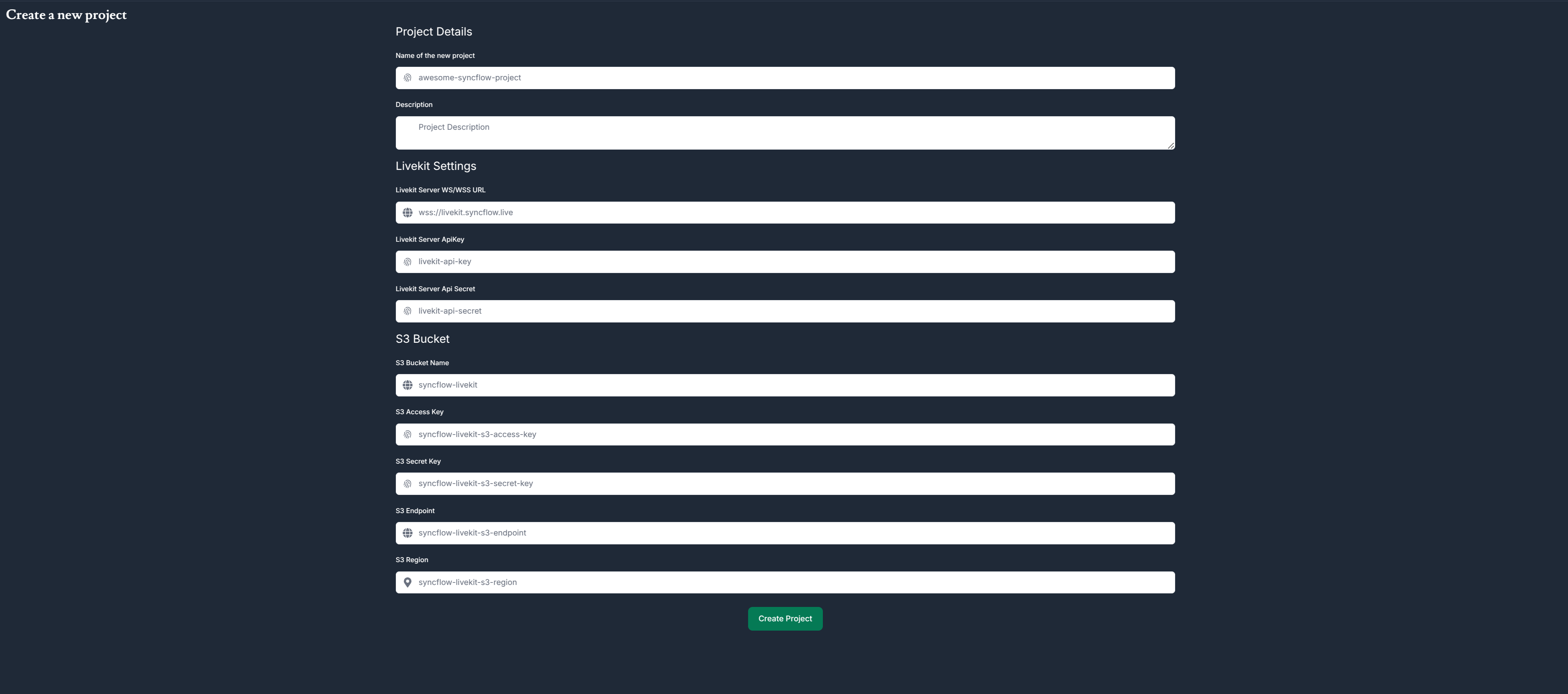
Fill in the necessary details, including the project name, description, your LiveKit and S3 credentials, and click on the Create Project button.
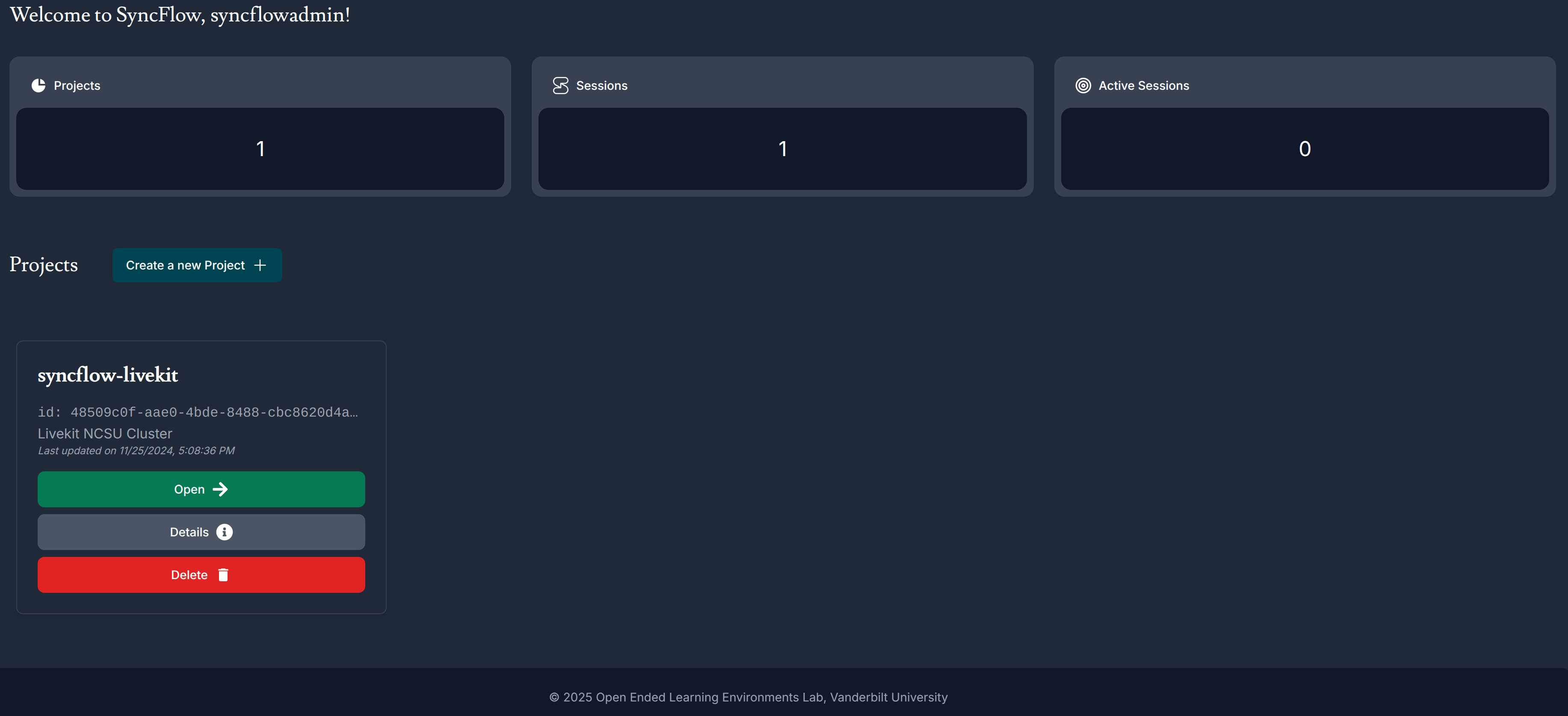
- Upon successful creation, you will be redirected to the project dashboard, where you can manage resources, sessions, and participants. Below is a snapshot of the dashboard:
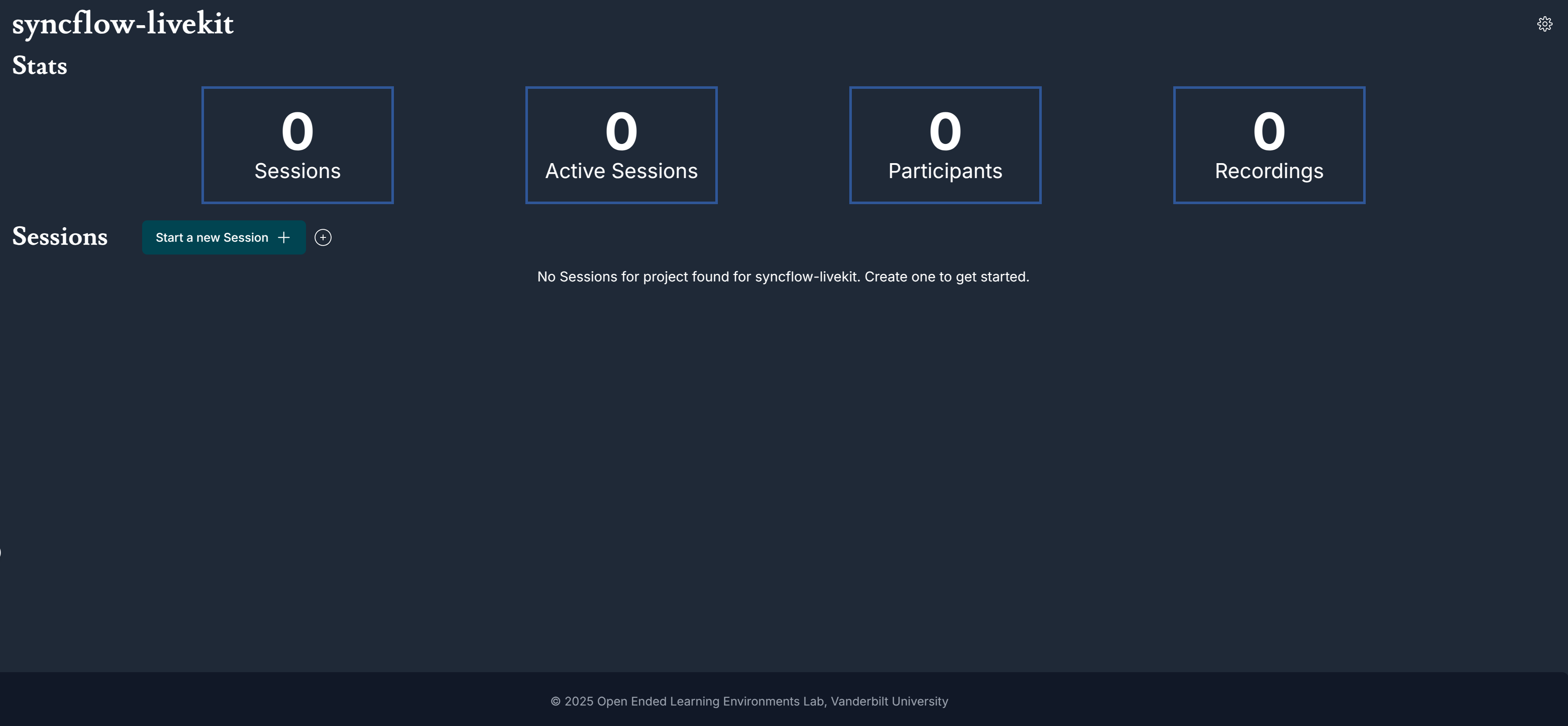
Open the project dashboard to view and manage sessions, participants, and resources associated with the project, as shown below:
Creating Sessions and Session Management
Sessions are the core unit of execution within SyncFlow, enabling real-time collaboration and data exchange. To create a new session, follow these steps:
- Click on the
Start a new Sessionbutton on the project's page. A new modal will pop up, as shown below:
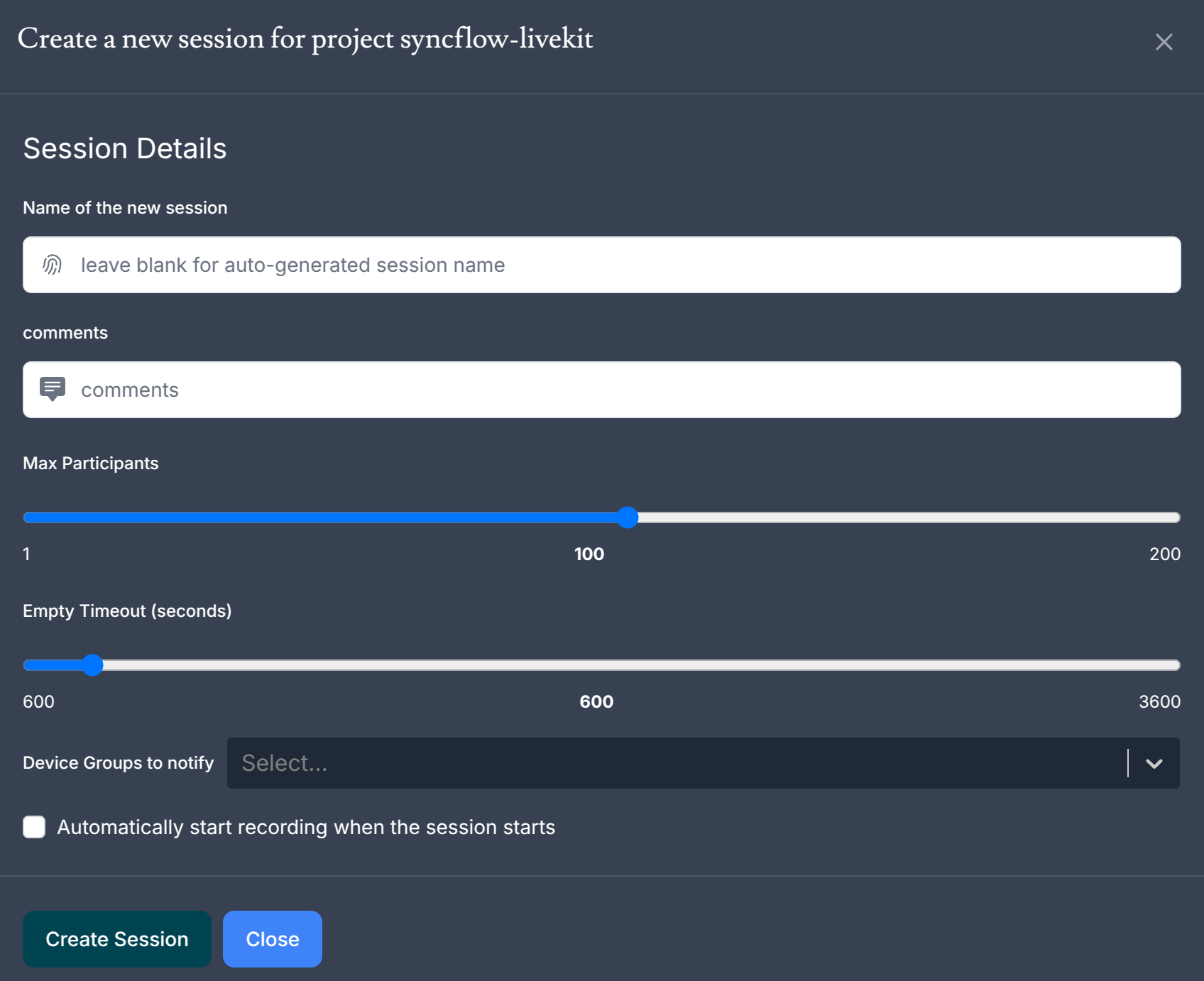
-
Fill in the necessary details, including the session name, description, and click on the
Create Sessionbutton. -
Upon successful creation, you will be redirected to the project dashboard with the newly created session listed. You can join the session by clicking on the
Livebutton, as shown below:
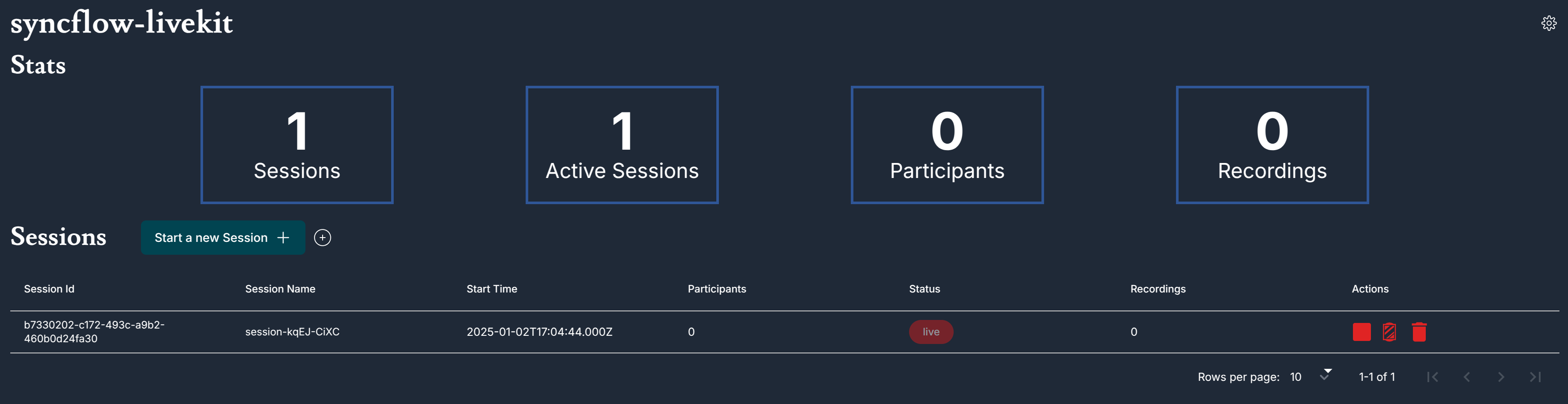
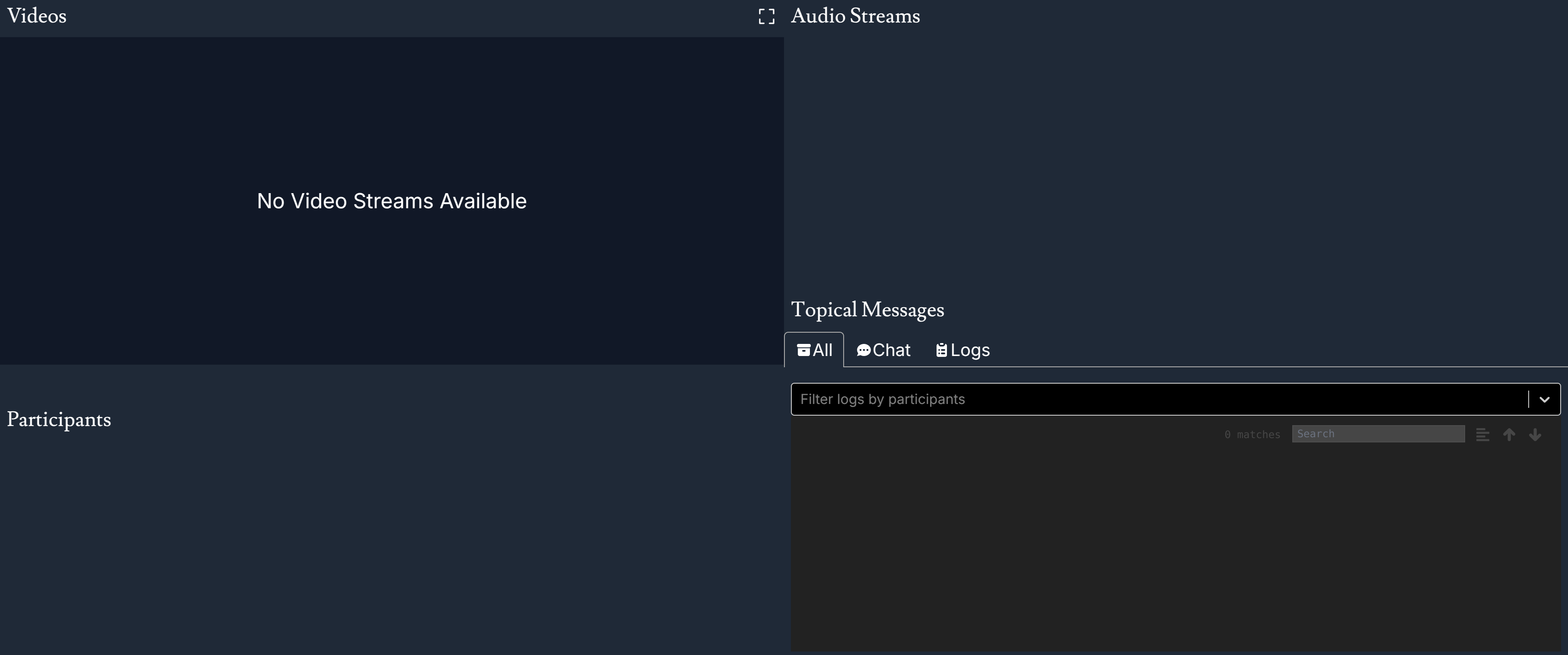
- Upon joining the session, you will see the following screen, where you can monitor the streams in the session. There could be several clients connected to the session, each streaming multimedia and textual data, and this will be discussed in details in the integration guide.